

See what you hear.
Stop scrubbing to find that one sentence.
Audio Print is a Mac app. Copy the download link and open it on your Mac to download.
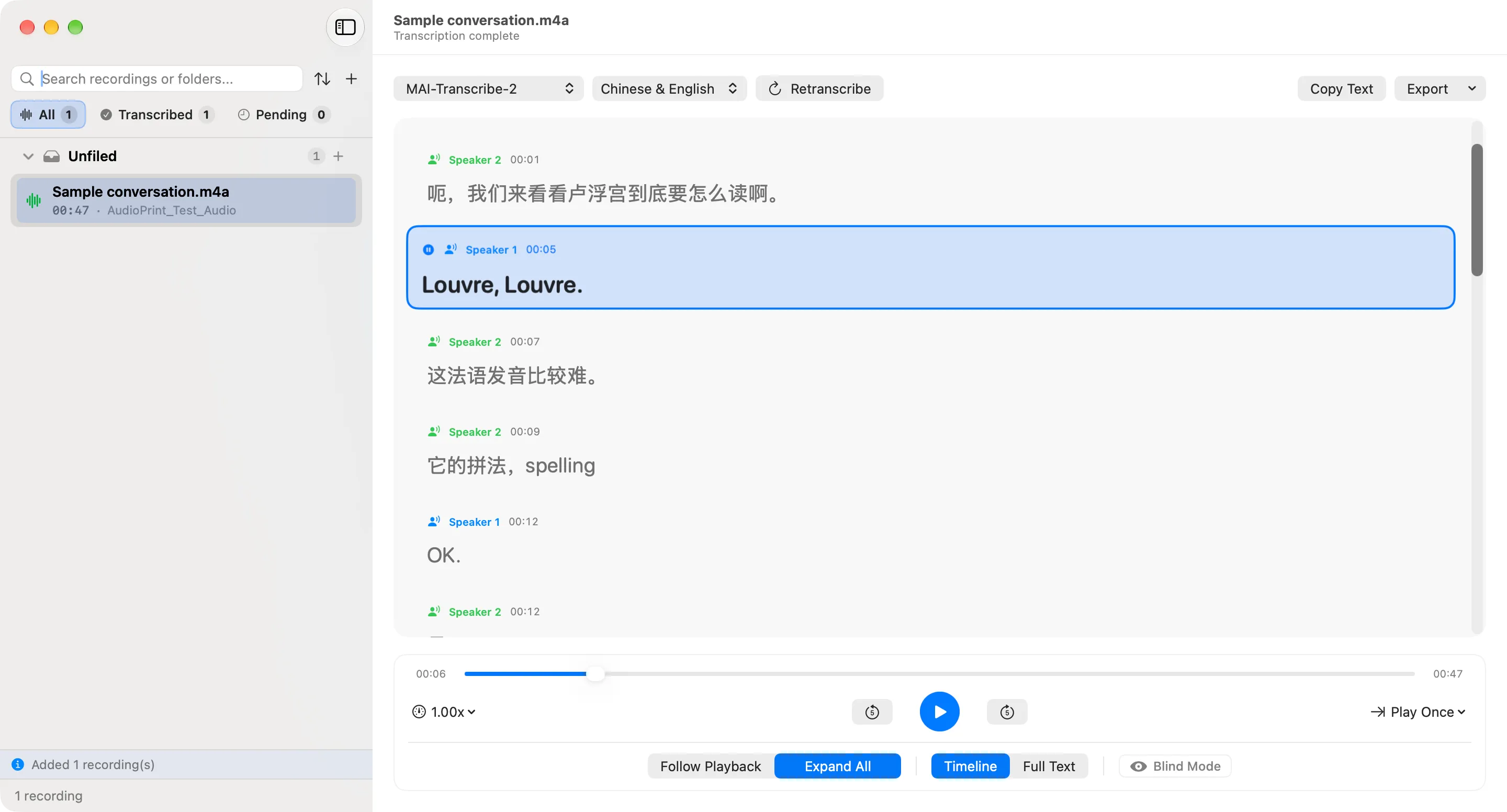
呃,我们来看看卢浮宫到底要怎么读啊。
Louvre, Louvre.
这法语发音比较难。
它的拼法,spelling
OK.
是 LOUVRE.
So, just in English, right?
If you just want to say this in English, we just say the Louvre, Louvre.
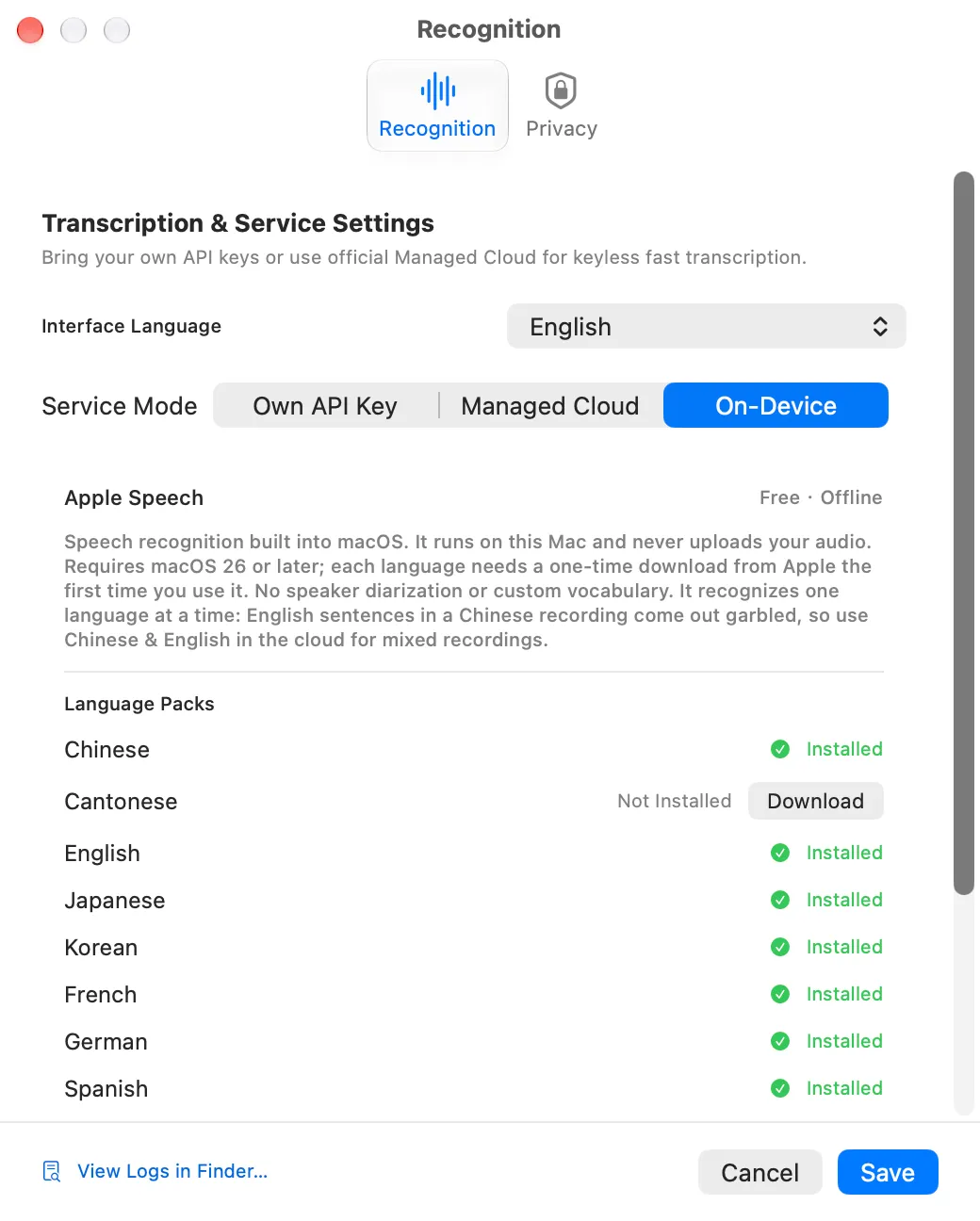
Three service modes: Own API Key · Managed Cloud · On-device
No account required. Under Service Mode in Settings, switch between Own API Key, Managed Cloud and On-device.
Works with Alibaba Cloud Model Studio Qwen-Audio 3.1 (China, Beijing region keys only), Google Gemini 3.5 and OpenRouter. Keys are stored in the macOS Keychain.
Sign up with email for 120 free minutes (once per Mac). Transcribed by Microsoft MAI-Transcribe-2; the uploaded audio is deleted from the cloud when transcription finishes.
No sign-in and no API key, and your audio never leaves your Mac. The first time you use a language, macOS downloads its speech model; after that it works offline.
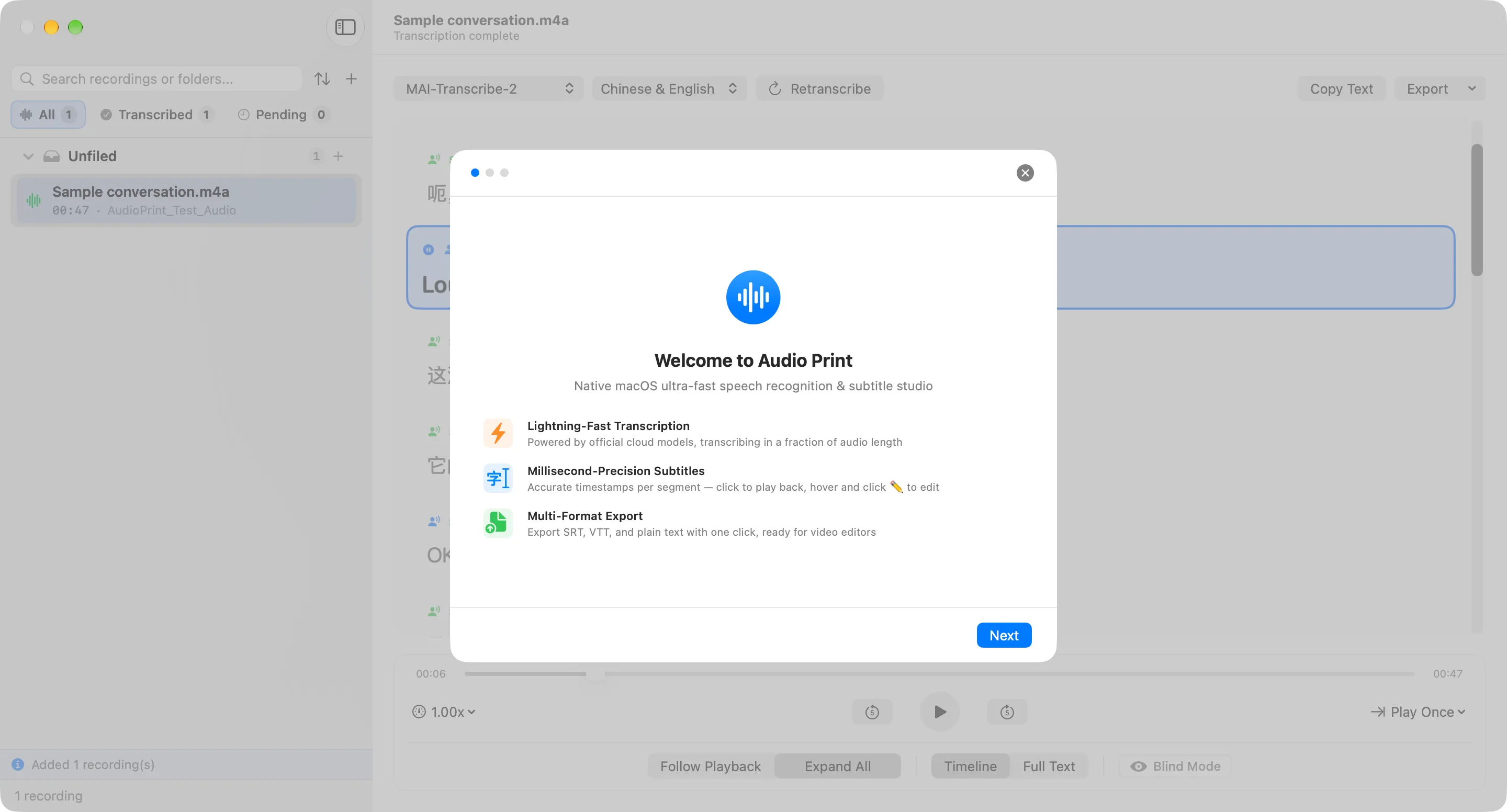
Get 120 minutes in a few steps on first launch
Enter your email in the welcome window, then the verification code you receive, and 120 minutes of Managed Cloud time are added to your account.
- 1WelcomeA quick tour of transcription, sentence alignment and export.
- 2Sign up with emailEnter your email and the 6-digit code to sign up. You can set a password too.
- 3120 minutes addedYour balance belongs to your account and follows you to another Mac.
Every pause and every word, matched to its sentence.
Ordinary players leave you guessing on the scrubber. Audio Print lines the audio up with the text, sentence by sentence, so studying and editing take less effort:
Click any line to hear it again
No more dragging the scrubber back and forth. Click any sentence in the Timeline or Full Text view and playback jumps to its start; the current sentence is highlighted with an animated waveform icon.
The details
Built for intensive listening and proofreading.
Click any line. Hear it again.
No dragging back and forth. Click any sentence and the audio plays from its start, with the current line highlighted and an animated waveform beside it.
Standard subtitles, three formats.
Export SRT or WebVTT subtitles, or plain-text TXT, in one step. Timecodes use the standard format and every line carries its speaker, ready for video editors and note-taking apps.
Blind Mode, one line at a time.
Hide the transcript in one click to practice dictation, then reveal a sentence to check what you wrote.
Click a line to reveal it
Long recordings split automatically, with custom vocabulary.
Meetings and lectures over 20 minutes are split at pauses during cloud recognition. In Own API Key mode you can add a custom vocabulary and background notes (sent to Whisper as a prompt, and to Qwen as hot words).
Real workflows
Made for two demanding workflows.
Language learning and listening practice
Podcasts, lectures and listening exercises in the language you’re learning. Instead of dragging the scrubber to find a sentence you missed, click it to replay from the start; when you catch the words but not the meaning, click Translate to see what that sentence says. Afterwards, export timestamped subtitles and text to review.
- Click a line to replay it; the current line is highlighted
- Blind Mode: reveal one line at a time
- Playback at 0.75x, 1.0x, 1.25x, 1.5x and 2.0x
- Translate any sentence in one click (macOS 15+)
Proofreading long recordings, podcasts and interviews
Getting the text is only the first step — when editing, you still need to listen back to check a line. Audio Print only records where the original file is and never copies the audio; when you’re done, export subtitles in one step.
- Recordings over 20 minutes are split and recognized automatically
- No copies of your audio, no extra disk space
- Export standard SRT, WebVTT and plain-text TXT
Modes
Three ways to transcribe. Your choice.
From a cloud service you don’t have to set up to on-device recognition that keeps your audio on your Mac — switch any time.
Managed Cloud
No API key to set up. Transcribed by Microsoft MAI-Transcribe-2 with automatic speaker identification; recordings up to 19 minutes go in one piece, longer ones are split automatically.
- ✓ Engine: Microsoft MAI-Transcribe-2 (via OpenRouter)
- ✓ Automatic speaker identification
- ✓ Up to 19 minutes in one piece; longer recordings are split
- ✓ Billed by the second; failed or cancelled jobs are refunded
- ✓ Cloud audio deleted after transcription, with an Ed25519-signed deletion record
Own API Key (BYOK)
Enter your own API key in Settings. The app is free; you pay the provider directly at their prices.
- ✓ Alibaba Cloud Model Studio Qwen-Audio 3.1: good with mixed Chinese–English and Chinese dialects, identifies speakers, accepts hot words (China, Beijing region keys only)
- ✓ Google Gemini 3.5 Transcribe: suited to single-language meetings with several speakers; identifies speakers; word-level timestamps
- ✓ OpenRouter Whisper Large v3: mixed Chinese–English, supports a background prompt and custom vocabulary; doesn’t identify speakers
- ✓ Keys stay in the macOS Keychain, and requests go straight to the provider, not through our servers
On-device recognition
Uses the speech recognition built into macOS (SpeechAnalyzer); everything happens on your Mac.
- ✓ Your audio never leaves your Mac
- ✓ No sign-up or sign-in
- ✓ The first time you use a language, macOS downloads its speech model; after that it works offline
- ✓ Doesn’t identify speakers
- ✓ Requires macOS 26 or later
Our privacy commitments, in writing.
Our servers don’t keep your audio: Managed Cloud deletes it as soon as transcription finishes.
Kept in the macOS Keychain
API keys and Managed Cloud sign-in credentials are kept in the macOS Keychain, never in preference files or logs.
Ed25519-signed deletion records
When Managed Cloud transcription finishes, the cloud audio is deleted and the server issues an Ed25519-signed deletion record, which the app verifies with the public key.
Redacted diagnostic logs
When you export diagnostic logs, API keys and sign-in credentials are replaced with [REDACTED_KEY] and [REDACTED_TOKEN], so they aren’t exposed when you report a problem.
Frequently asked questions
Can it handle recordings longer than 20 minutes?
Yes. With cloud recognition, long recordings are split into segments, recognized and joined back together, with the cuts placed at pauses where possible; Managed Cloud handles recordings of up to 19 minutes in one piece. On-device recognition doesn’t split recordings; in testing it handled a recording 2 hours 23 minutes long.
Can it translate the transcript?
Yes, one sentence at a time. Hover over a sentence and click Translate, or press ⌘T to translate the one that’s playing; the translation appears below the original, and each sentence can be switched to another language. Translation runs on your Mac using the translation built into macOS and needs macOS 15 or later. The first time you translate into a language, macOS downloads its language pack; after that it works offline and the original text is never uploaded. Machine translation helps you get the gist but isn’t guaranteed to be accurate word for word. Translations appear only in the app and aren’t written into exported subtitles. Cantonese transcripts can’t be translated yet.
Why does it need a Mac with Apple silicon and macOS 14.0 or later?
Audio Print is built with Swift and SwiftUI, and the installer contains only the Apple silicon (arm64) version; the minimum system is macOS 14.0. On-device recognition also needs macOS 26, and sentence translation needs macOS 15.
How do I get the 120 free minutes?
Open the app, enter your email in the welcome window, and type in the 6-digit code you receive to sign up (you can set a password too). You’ll get 120 minutes of Managed Cloud time, once per Mac. Your balance belongs to your account, so if you reinstall macOS or switch Macs, sign in with your email and it’s still there.
Will importing large audio files use more disk space?
No. The library only records where the original file is (a macOS security-scoped bookmark) and doesn’t copy the audio; if you move or rename the file on the same disk, the app can still find it. The only extra data kept on your Mac is the recognized transcript text.
Start seeing what you hear.
No more guessing on the scrubber. Try native macOS transcription and intensive listening.